
Works on ShipThis, an open-source CLI for building and publishing Godot mobile games.
Liquid Glass Icons for Godot iOS Games (iOS 26+ App Icon Guide)
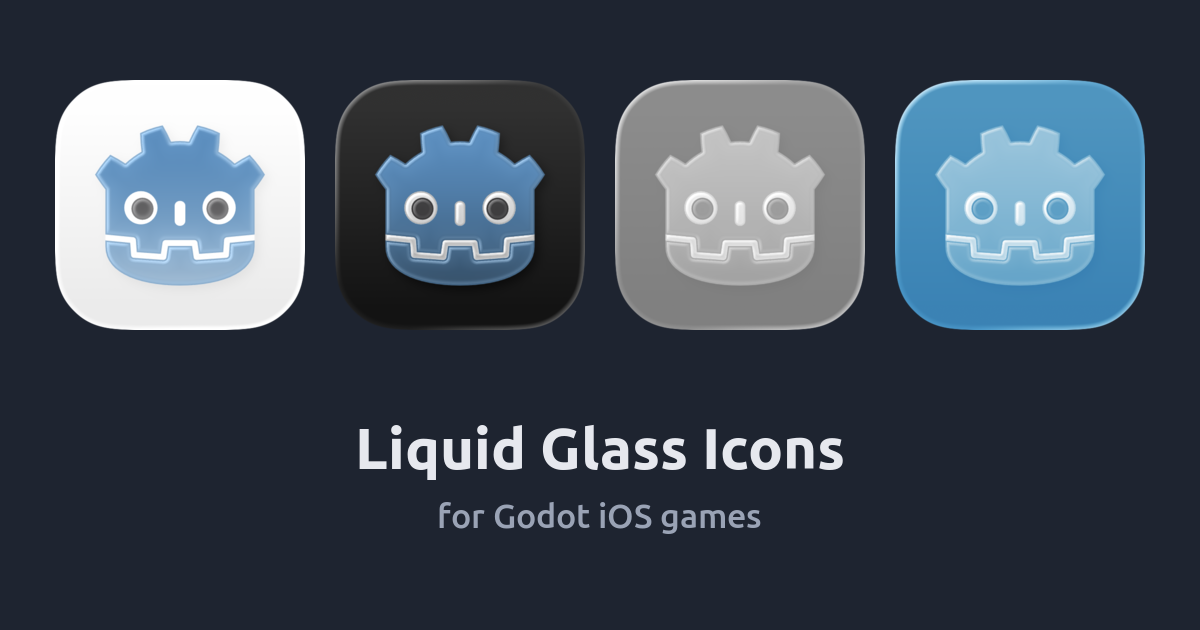
Liquid Glass icons and Godot
Godot's iOS export does not support the new Liquid Glass icons from iOS 26 yet - you can only give it images like PNGs. The macOS export got .icon support in Godot 4.6, but there is nothing for iOS so far.
This post covers what the new icons do, and how to add one to your game's Xcode project after you export.
While I was researching this I found the icons are a lot more customisable than I thought. Players can switch their home screen to dark, clear or tinted (in any colour they like), and the .icon file lets you decide how your icon looks in each of them. So there is a bit more here about the file format than I planned.
Disclosure: I work on ShipThis. Step 3 shows the manual way in Xcode and the ShipThis way.
30-second answer
- Make a
.iconin Apple's Icon Composer - this part needs a Mac - Export your game from Godot for iOS as normal
- Add the
.iconto the Xcode project and set it as the app icon - by hand in Xcode, or withnpx shipthis util glass - Build with Xcode 26
What is in a .icon
A .icon is a folder. It has your artwork as separate layers (SVG or PNG) and an icon.json which says how each layer should look - colour, opacity, the glass effect and so on.
iOS draws the glass itself: the highlights, the blur, the see-through parts and the shadows between layers. So the same file can look quite different depending on where it is shown.
This is one icon - Godot.icon by mntkat - rendered by Icon Composer in all of the appearances:

The player picks the look
On iOS 26 the player long-presses the home screen, taps Edit then Customize, and picks a style:
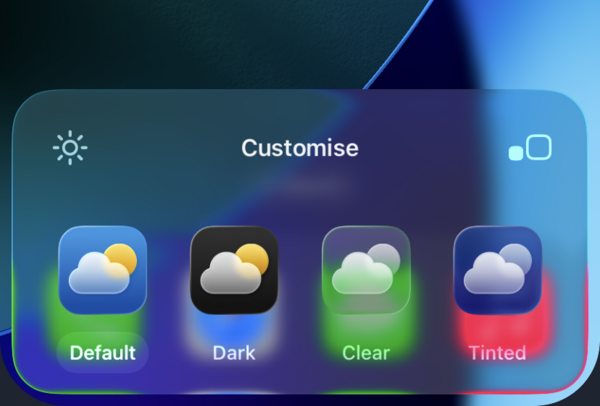
| Style | What happens to the icon |
|---|---|
| Default | Full colour |
| Dark | Your dark colours, on a dark background |
| Clear | See-through glass - in a light or dark version |
| Tinted | One colour, which the player chooses - also light or dark |
So that is six looks in total. You do not draw six icons though - in Icon Composer you set up Default, Dark and Mono (Mono is what Clear and Tinted are made from).

This is an iOS 26.1 home screen with the icon installed (the game is "Glass Act"):
1. Make the .icon
Icon Composer is free from Apple and only runs on macOS - the current version needs macOS 26.4 or later. It also comes with Xcode (Xcode → Open Developer Tool).
- Export your icon artwork as separate layers - e.g. background, character, details
- Drag them into Icon Composer
- Change the fill, opacity and glass for each layer
- Switch the preview between Default, Dark and Mono and fix anything that looks off
- Save it, e.g.
MyIcon.icon
Some tips from Apple's guide:
- Take the blur, shadows and background out of your artwork - Icon Composer adds those
- Convert any text to outlines, SVG layers do not keep fonts
- You can have up to 4 groups of layers, and the depth comes from the groups - so if everything is merged into one it looks flat
- In Clear and Tinted the colour is gone and only the shape is left
Tip: if you just want to try the steps first,
Godot.iconfrom mntkat/GodotAppleIcon works.
2. Export from Godot
Use your normal iOS export preset and Export Project. You get a folder with an .xcodeproj in it.
If you are on a Mac, Godot will also try to build the project with Xcode after the export. You can tick Export Project Only in the preset to skip that, as you will be building it yourself after adding the icon.
3. Add the .icon to the Xcode project
By hand in Xcode
- Open the
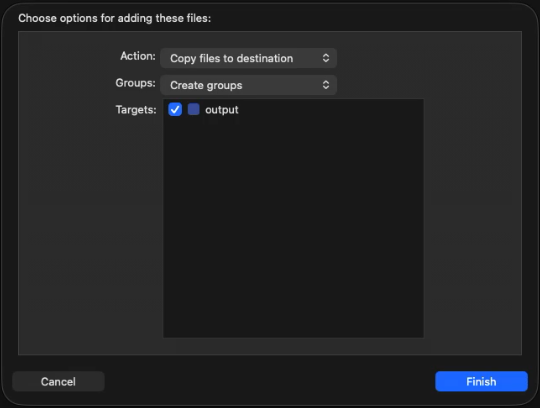
.xcodeprojand dragMyIcon.iconfrom Finder into the project navigator. In the dialog, leave Action on Copy files to destination, check your game's target is ticked and click Finish
- Select the target, open the General tab, and under App Icons and Launch Screen change App Icon from
AppIcontoMyIcon- the file name without.icon, and it is case-sensitive
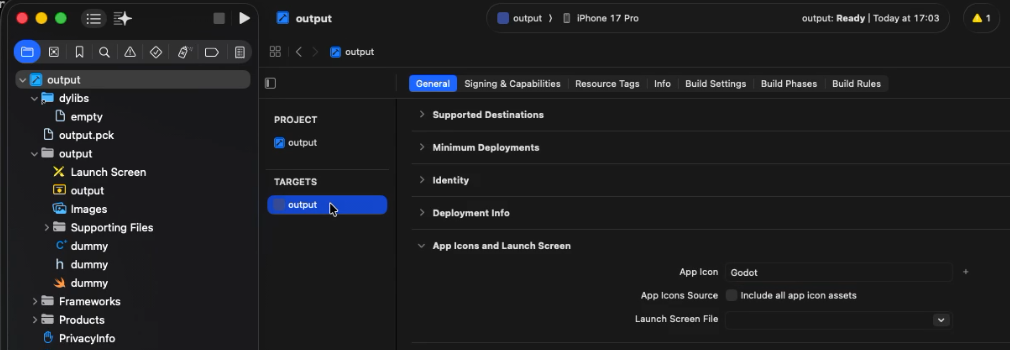
That second step changes the ASSETCATALOG_COMPILER_APPICON_NAME build setting. AppIcon is the PNG icons from Godot - they are still in the project, but they are not used any more.
Note: Godot writes a new Xcode project every time you export, so the icon is gone again after the next export and you have to redo these steps.
With the ShipThis CLI
shipthis util glass makes the same changes to the project.pbxproj file, from the command line:
npx shipthis util glass ios/output.xcodeproj MyIcon.iconThis is why I would use it over doing it by hand:
- It is headless - no Xcode window, no clicking
- It does not need a Mac or a ShipThis account, so it runs on Linux too - anywhere Node runs
- You can put it in your build script or CI straight after the Godot export, so the icon is applied on every export and you never have to remember
On my test project the output was (trimmed a bit):
Applying Liquid Glass icon from: ../Godot.icon
Derived app icon name: Godot
Copying .icon folder into project root: Godot.icon
Adding folder reference to Copy Bundle Resources: Godot.icon
Updating build settings for app icon: Godot
Liquid Glass icon successfully applied.
With ShipThis cloud builds
If you build with ShipThis, you do not need to touch Xcode at all. Put the .icon next to project.godot and run this once:
shipthis game details --liquidGlassIconPath ./MyIcon.iconEvery shipthis game ship after that exports the game, adds the icon and builds it on a cloud Mac. The ShipThis docs on Liquid Glass icons for Godot have the details.
4. Build and check it
Build with Xcode 26 - its asset compiler turns the .icon into the app icon.
Then put it on an iPhone running iOS 26 (or send it to TestFlight) and try each style from Edit → Customize on the home screen.
FAQ
What about players on iOS 18 and older?
Xcode makes flat images from the .icon for older iOS versions when it builds. So players on iOS 18 see a flat version of your Liquid Glass icon - not the PNGs from Godot.
Do I need a Mac?
For Icon Composer, yes. Adding the icon to the Xcode project can be done anywhere with the CLI, but building for iOS still needs Xcode on a Mac, or a cloud build.
Can my game choose which style is shown?
No, that is the player's home screen setting.
What is ShipThis?
ShipThis is an open-source (MIT) command line tool for building and publishing Godot games to iOS and Android. The builds run in the cloud, so you can ship to the App Store and Google Play from Windows, Linux or a Mac. It is free while it is in open beta, and will always be free for most solo devs. The util glass command in this post works without an account. The code is on GitHub: github.com/shipth-is/cli.
Icon: mntkat/GodotAppleIcon. Godot logo by Andrea Calabró, CC BY 4.0.
Resources: